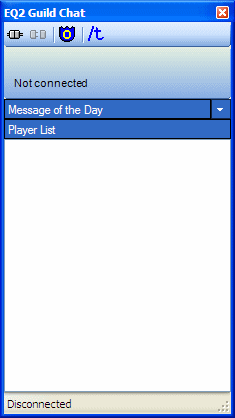
Double-click on the EQ2GC icon  on your desktop or click on the short cut on the start menu. EQ2GC will start and you will see the
main window.
on your desktop or click on the short cut on the start menu. EQ2GC will start and you will see the
main window.
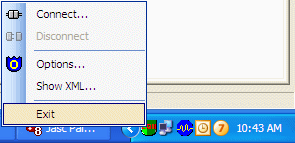
You can exit EQ2GC at any time by right clicking on the program icon in the system tray and selecting exit from the menu.
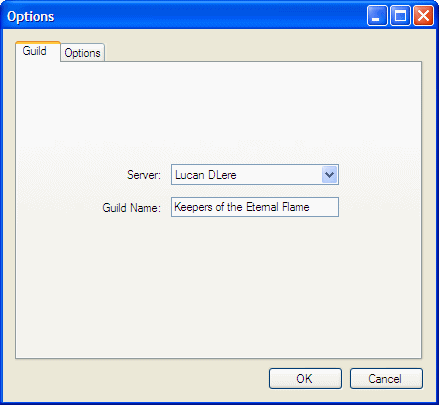
Click on the Options button  to setup your guild information.
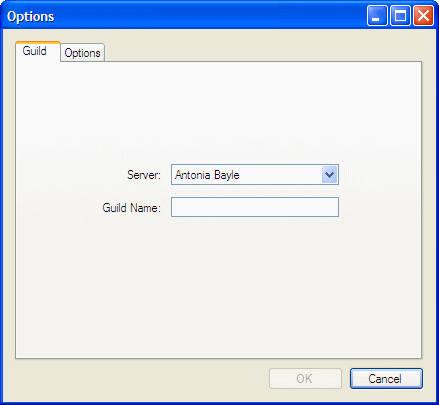
Select your server in the drop down and enter the name of your guild. Then click OK.
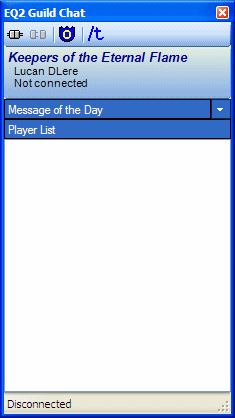
On the main window, your guild name and server should now be displayed below the button bar. Click the connect button  to
connect to the Everquest 2 guild chat server.
to
connect to the Everquest 2 guild chat server.
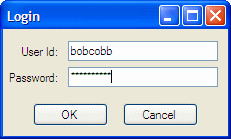
You will be prompted for your user name and password. This is the same user name and password you use to log into the game. EQ2GC uses a secure connection to the chat server, so you're user name and password are both encrypted before they are sent to the chat server. Click OK, to log in.
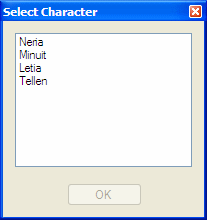
EQ2GC will now log into the chat server. When the log in has completed, you will be shown a list of the character you have in the selected guild. Pick the character you want to chat with and click OK.
You will now be connected to your guild's chat channel. The main chat window will keep track of the characters currently in guild chat.
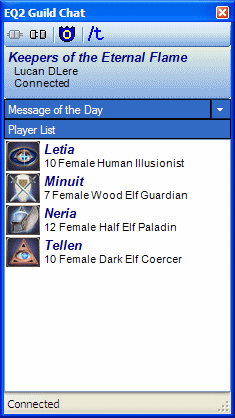
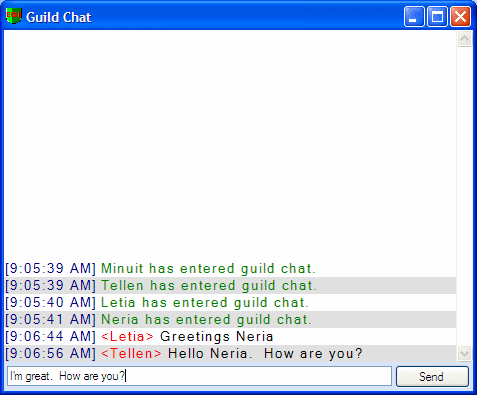
The guild chat window will also open. To chat, enter your message in the text box at the bottom of the chat window and click send or press ENTER when you're ready to send.
This is the end of the walk-through, there are other features currently implemented, but you will have to experiment with them as they are not currently documented.